Published On: July 3, 2026
Hello!
Have you ever felt frustrated when something goes wrong on your laptop, and you are not sure what to do or who to approach for help?
Before reaching out to your IT department, here are some simple troubleshooting steps you can try.
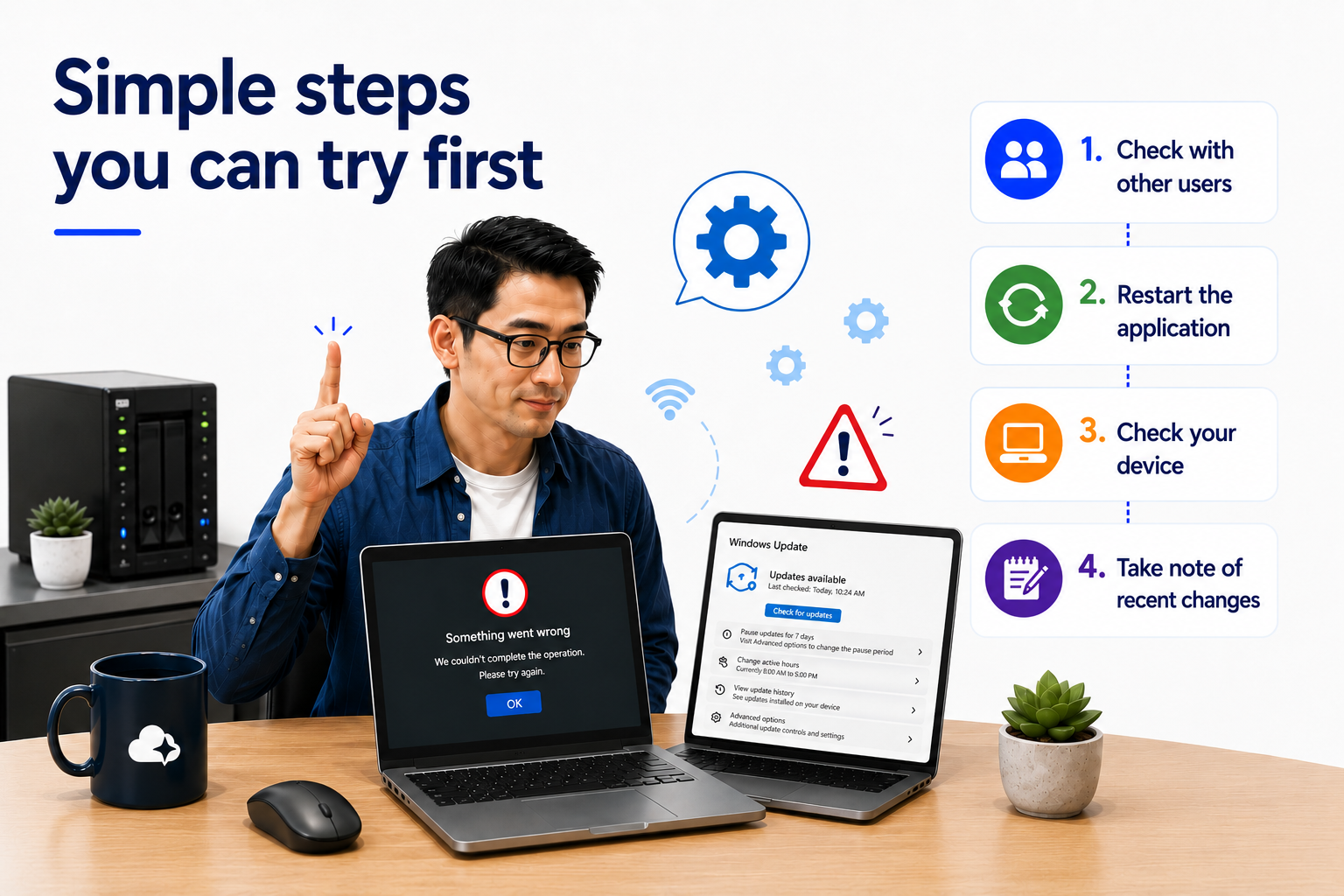
If you are facing an issue, check with your colleagues to see if they are experiencing the same problem.
⚠️ Important: Make sure you are comparing the same scenario (e.g. same system, same access method, same timing) to avoid confusion.
Try restarting the application you are using.
This simple step can often resolve minor glitches.
⚠️ Important: Ensure the application is fully closed (not running in the background) before reopening it.
Open Task Manager and review your device performance:
Uptime refers to how long your device has been running without a restart.
⚠️ Important: Before restarting your device, ensure that all your work is saved and applications are properly closed to avoid any data loss.
If your device has been running for several days or is performing slowly, try restarting it.
Tip: Restarting your device every few days can help maintain performance.
Think about what might have triggered the issue:
⚠️ Important: Even small changes (such as password updates or VPN usage) can affect system access.
If the issue is still not resolved, you can reach out to your IT department or vendor.
Providing the following details will help speed up the support process:
⚠️ Important: Include screenshots or error messages where possible. This helps IT teams diagnose the issue faster.
These are some simple troubleshooting steps you can try before seeking IT support. They can help save time and make it easier for IT teams to assist you more effectively.
If you have further questions or would like to learn more, feel free to reach out.
Australia
P: +61 3 9087 8057 E: info@cloudpoints.com.auSingapore
P: +65 6990 7890 E: info@cloudpoints.com.sg